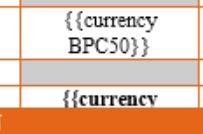
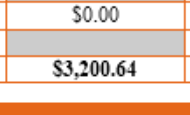
I am having an issue in designer and I’m hoping for a simple solution. I need to map currency fields to cells in a table. The fields are already using somewhat short field names (BP01, BP02, BPC01, BPC02, etc), however {{currency BP01}} is long enough to wrap in the cell and cause that row (and the whole table) to grow and overlap other absolute elements below it. This is creating a huge design headache for me. The data that is actually in these fields is never large enough to cause this problem, so when I go from the design tab to the preview tab, everything looks great (see screenshots for very small example).
As a clunky solution, I started creating text scripts for each of these fields which allowed me to produce the same fields with shorter tags - turning {{currency BP01}} into @BP01@ for example - however, after creating the first 30 text scripts (out of about 115 needed), I am already noticing a substantial performance impact when creating PDF output. So, I’ve put that solution on hold for the moment in hopes that one of you know of a better way!
It seems like this must be a common issue and I’m missing something obvious.
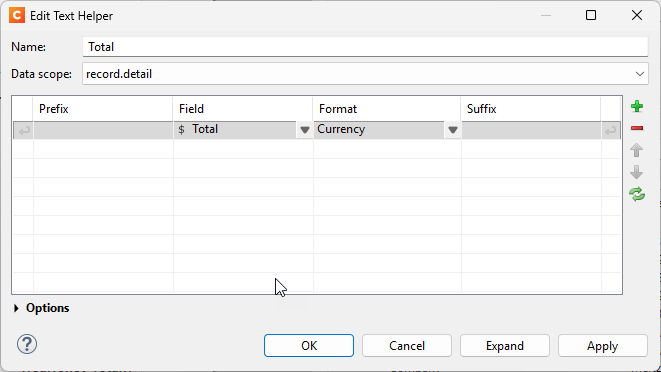
Instead of Text Script create either a Handlebars Text Helper or register custom expression (helpers) in a control script. Below a screenshot of the text helper (also found in the Scripts panel), the name is set to the desired expression, in this example the expression will be {{Total}} and you can use the rules to compose and format the data.
In a control script you could register custom helpers. The following example registers a helper which returns the formatted value. This shortens the expression to {{c BP05}}
An other technique you could use is creating a custom expression similar to the Text Helper, but in this case you would need to create a helper per field, the expression stays {{BP05}} and takes precendence.
Handlebars.registerHelper("BP05", function() {
	const value = this.fields['BP05']
	return formatter.currency(value);
});
Another approach is creating an array of the currency fields and loop over these items to register the custom expression. Again this uses the standard field name expression (e.g. {{BP05}}).
var currFields = ["BP01", "BP02", "BP05", "BP06"];
currFields.forEach(function(fieldName) {
    Handlebars.registerHelper(fieldName, function() {

        const field = this.fields[fieldName];   // dynamic lookup
        const value = formatter.currency(field);

        return new Handlebars.SafeString(value);
    });
});
I suggest to run some tests and compare the performance.
Is there a way to create a custom helper to return a runtime parameter? Instead of {{@parameters.CountyNo}}, I would like to be able to use {{p.CountyNo}} or something similarly concise. Thanks!
A word of caution: I recommend that you only use Handlebars.SafeString in a custom helper if the value you return contains HTML tags and should be inserted into the DOM as-is - otherwise you run the risk of corrupting your output.
This example may be a bit convoluted, but if a custom helper returns the value “The result of a<b is true”, the result will be truncated if you use Handlebars.SafeString.