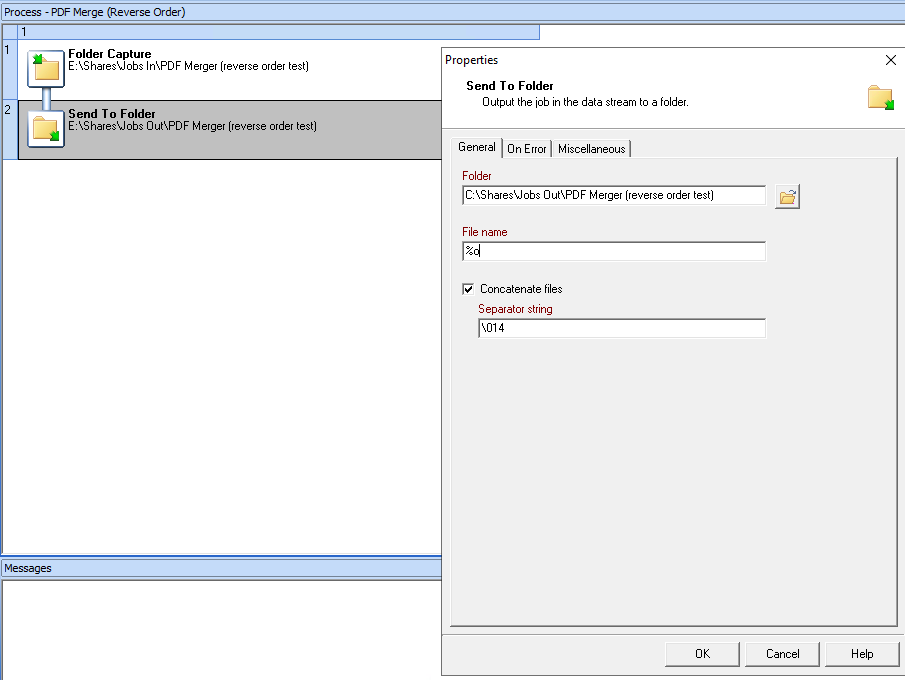
I’m trying to think of a way to concatenate PDF documents in reverse order. So what I mean is, we have PDF1.pdf and PDF2.pdf. I PDF2.pdf is already in a folders and I want to concatenate PDF2 and PDF1 in that order. How to achieve this? Would I need to js script to achieve this? There is this thread (Concatenate Files: Reverse Order) with a similar problem but mine is with PDF document files
Thank you in advance.
Did you try the example of the CSV file and adapt your PDF situation to it?
Except for the splitting branch, which you don’t need.
The logic seems sound.
Hi @jchamel, I tried it but did not give me what I wanted. When I drop PDF1, then drop PDF2. I should have the content of PDF2 the first then PDF1. Instead, I get PDF1 content then PDF2 content in the final contatenated pdf file. Adding another folder capture above the Send to folder targeting the same output folder, will make the process loop to infinity. Any suggestions?
1- (Main) Folder capture (the source)
2- (Main) Sent to Folder (the out) as an action
3- (Main) A Branch
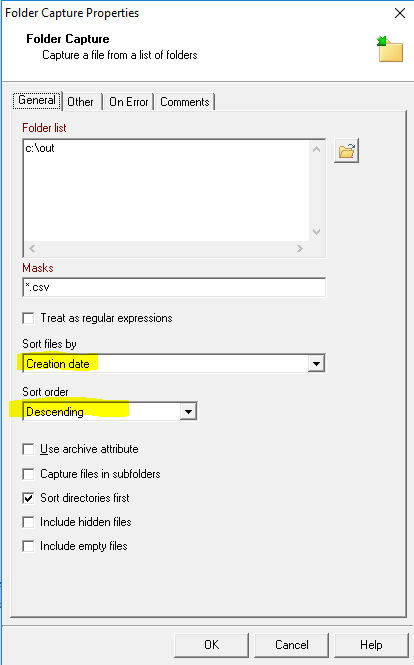
4- (Branch) Folder Capture (the out folder) as an action and setup as this (adapt the Folder list):
5- (Branch) Sent to folder (the concat folder) with concat option ticked
6- (Main) Folder Capture (the concat folder) as an action
7- (Main) Sent to Folder (the out folder)
Only 7 steps but it takes care of the loop each Folder Capture are and make sure the order is respected. Although if you drop a lot of files at the same time, then the order might not be what you want as they will have pretty much all the same timestamp or the timestapm Widnows will attribute to each while you copy the files into the source folder.
Since a custom plugin is a plugin you create yourself, I don’t see why not.
You could also look at using the Folder Listing plugin to get a list of all file names in the folder, sorted by Name.
You can then use an Open XSLT task to sort the list in reverse order and produce a text file where each line contains the full pathname for each file:
Make sure the XSLT version is set to 2.0 in the editor.
Then you can change your emulation to Text and use a standard text splitter to go through each line, pick up the file and concatenate it with the rest using the Send To Folder task.