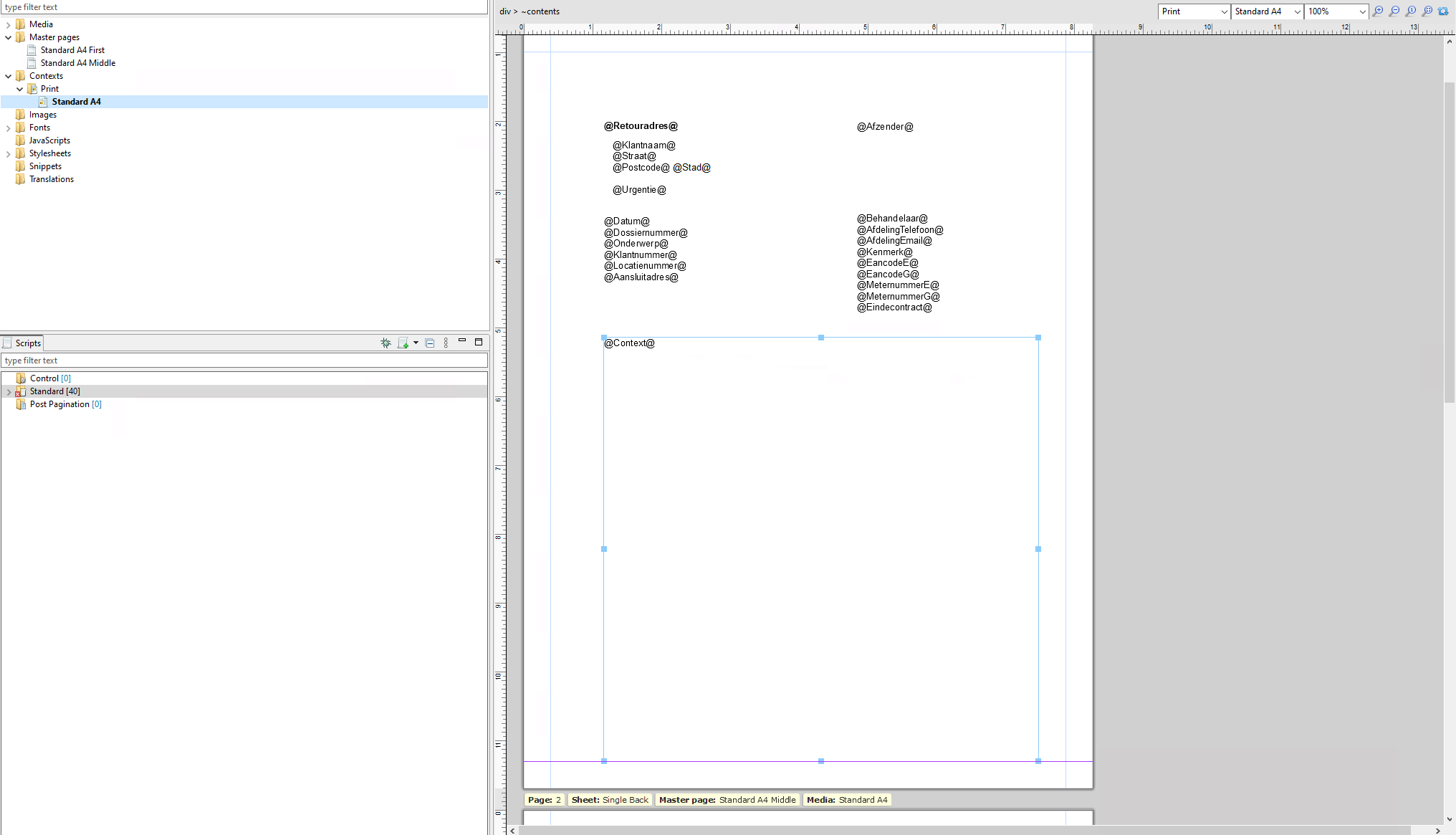
I have a Positioned Box that loads paragraph text from an external HTML file. However, when the text becomes too long, it gets cut off instead of continuing onto the next page. I’ve already set margins, but nothing appears on the second page.
I also tried placing @Context@ in both the master page and the print page, but that didn’t resolve the issue. How can I fix this so that the content flows correctly across multiple pages?
Hello @ABS , the content of a positioned box does not overflow to the next page automatically. Instead, you may want to change the top margin of the page to the desired position and apply an inline box.
Place your placeholder in the main text flow (not in the positioned box).
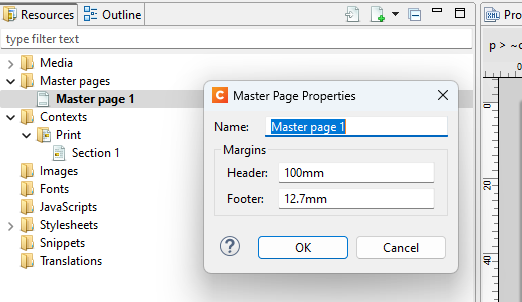
Set the Header Margin of Master Page 1 to the desired starting point for the content on the first or single page. Right-click Master Page 1 in the Resources panel and choose Properties. Enter the desired starting position for your content.
The header margin of an master page overrides the top margin set for the section when it is larger.
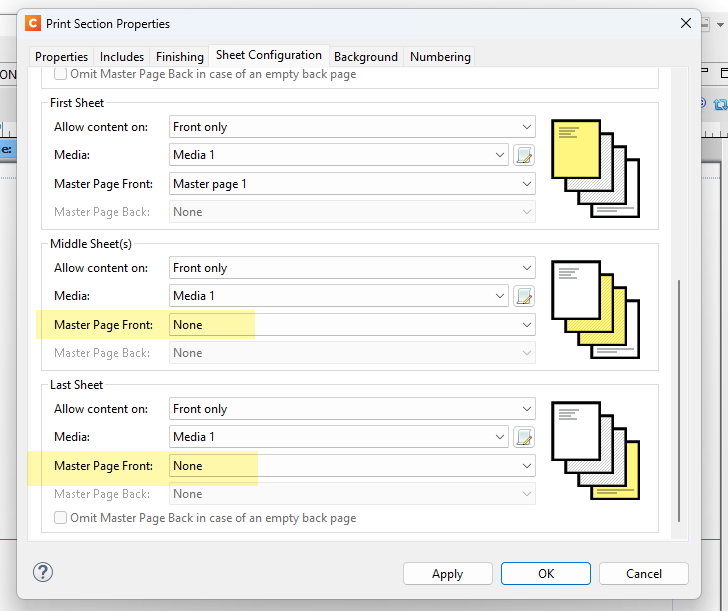
In the Sheet Configuration dialog of the Section, make the following settings (right-click Section 1 in the Resources panel and choose Sheet Configuration):
Untick Same for all positions.
Set the Master Page Front for the middle and last sheet positions to None (or to a master page other than Master Page 1). This ensures that the header margin of Master Page 1 doesn’t override the top margin set for the section.
This setup provides flexibility, especially when your records vary in length, resulting in a different number of pages per document. See the attached sample.