Absolute newbie to Automate / Node Red. I am trying to create a simple folder capture - send to folder Flow, with a dynamic output filename.
I have figured out that I need a Change or Function Node in-between to dynamically set the output destination and filename. I need some basic guidance into best practices. If I want to append a timestamp to the output filename, for example?
Currently I’m doing a “Change” to search for the “Input” foldername in the path and changing it to “Output” but I’m going to need much more robust alterations to paths and filenames. I’m looking for best practices to avoid teaching myself bad habits as I learn this!
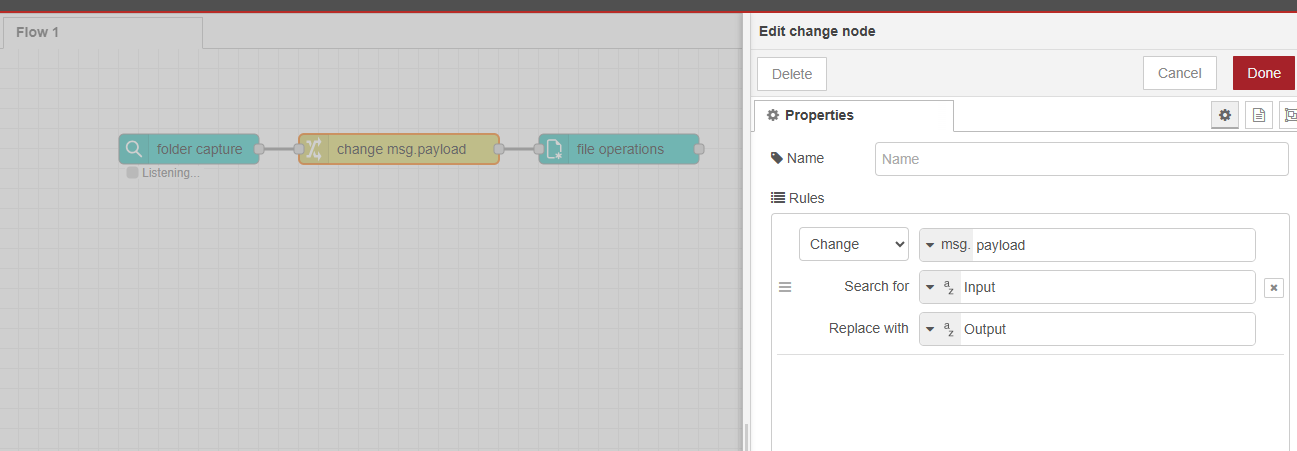
[
{
“id”: “7615da8e6333db8f”,
“type”: “tab”,
“label”: “Flow 1”,
“disabled”: false,
“info”: “”,
“env”:
},
{
“id”: “7b35f5d7165612f7”,
“type”: “olfnf-folder-capture-in”,
“z”: “7615da8e6333db8f”,
“folder”: “E:\pbCCMData\GUILD\Node_Red\Input”,
“folder_type”: “str”,
“create_directory”: true,
“subfolder”: false,
“ignoreempty”: true,
“masks”: “.”,
“masksregex”: false,
“watchMethod”: “polling”,
“name”: “”,
“x”: 210,
“y”: 100,
“wires”: [
[
“92acee509326f4aa”
]
]
},
{
“id”: “92acee509326f4aa”,
“type”: “change”,
“z”: “7615da8e6333db8f”,
“name”: “”,
“rules”: [
{
“t”: “change”,
“p”: “payload”,
“pt”: “msg”,
“from”: “Input”,
“fromt”: “str”,
“to”: “Output”,
“tot”: “str”
}
],
“action”: “”,
“property”: “”,
“from”: “”,
“to”: “”,
“reg”: false,
“x”: 420,
“y”: 100,
“wires”: [
[
“d15a6fe619ace7aa”
]
]
},
{
“id”: “d15a6fe619ace7aa”,
“type”: “olfnf-file-operations”,
“z”: “7615da8e6333db8f”,
“operation”: “move”,
“source_file”: “filename”,
“source_file_type”: “msg”,
“target_file”: “payload”,
“target_file_type”: “msg”,
“create_directory”: true,
“name”: “”,
“x”: 640,
“y”: 100,
“wires”: [
]
}
]
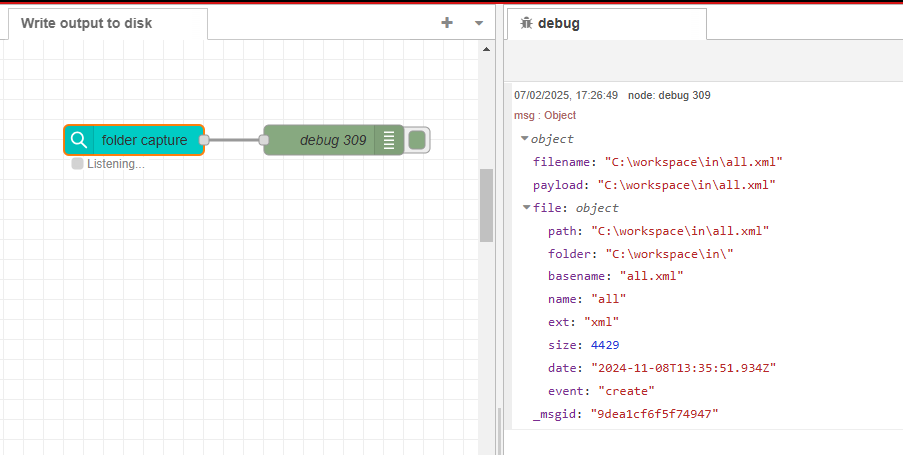
 (
(