We have received 4 PDF files (utility bills) that we combine into 1 file, then use DataMapper to extract address data into a CSV file for presort. I have used variations of these processes for several clients, including this one, to great success.. But something unexpected has happened.
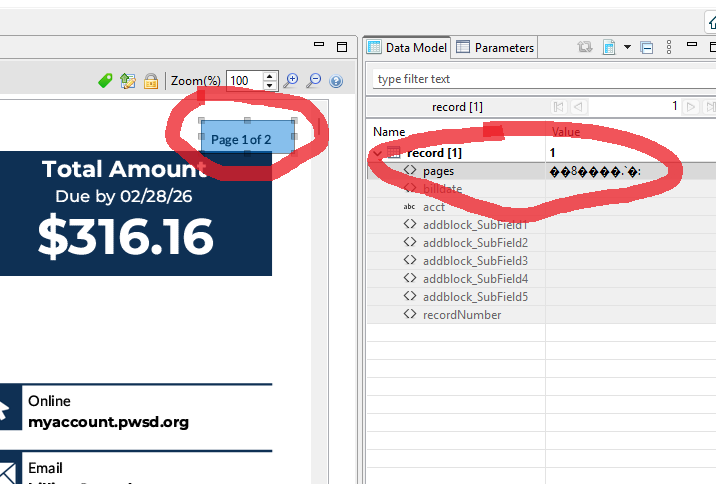
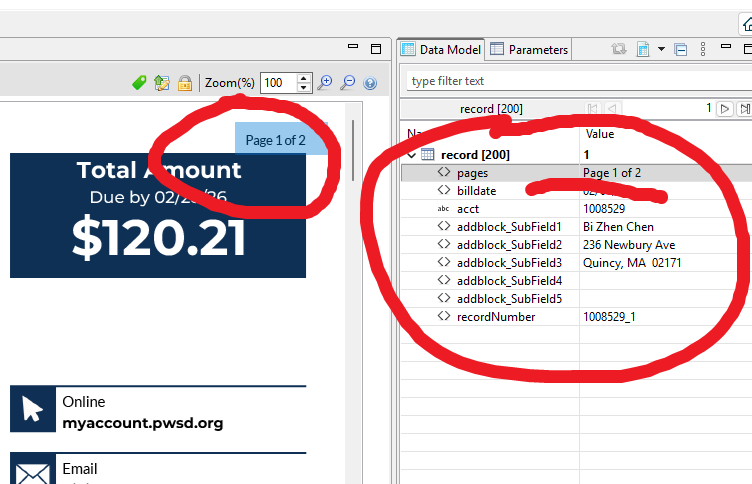
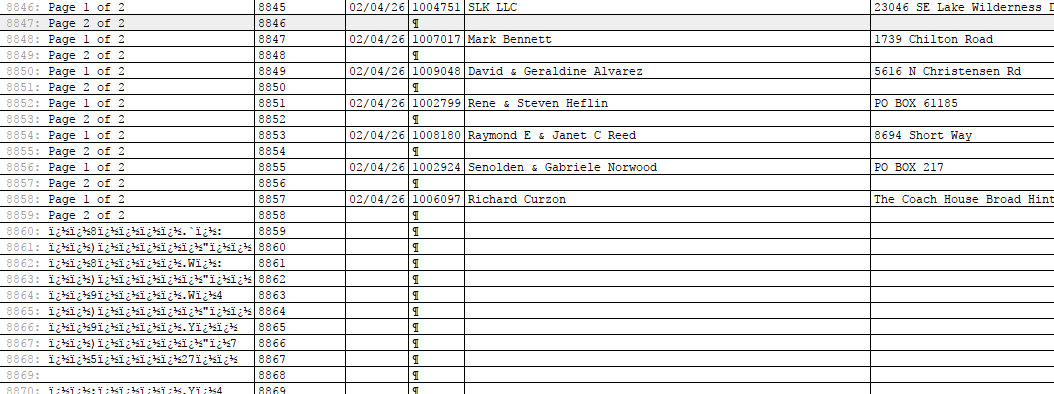
DataMapper cannot extract data from 2 of the 4 PDF files. The very first field is junk characters, and no other fields are extracted.
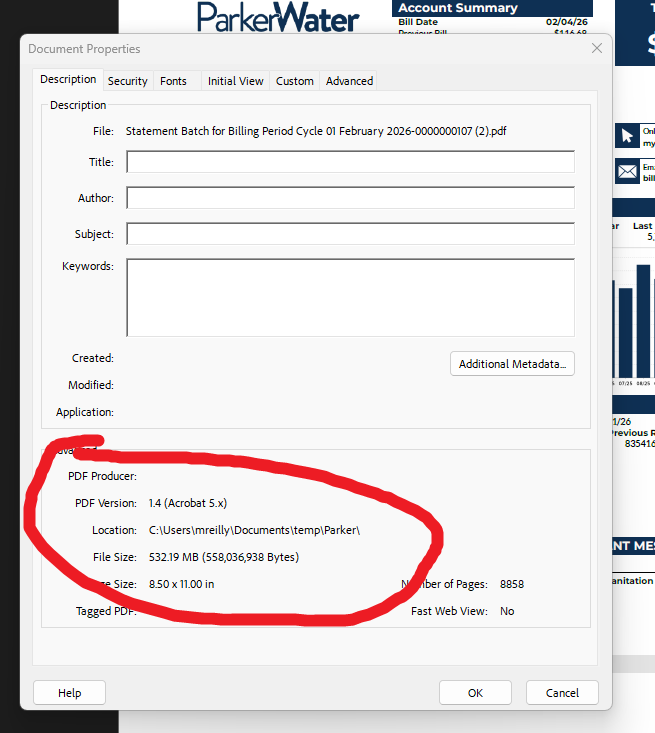
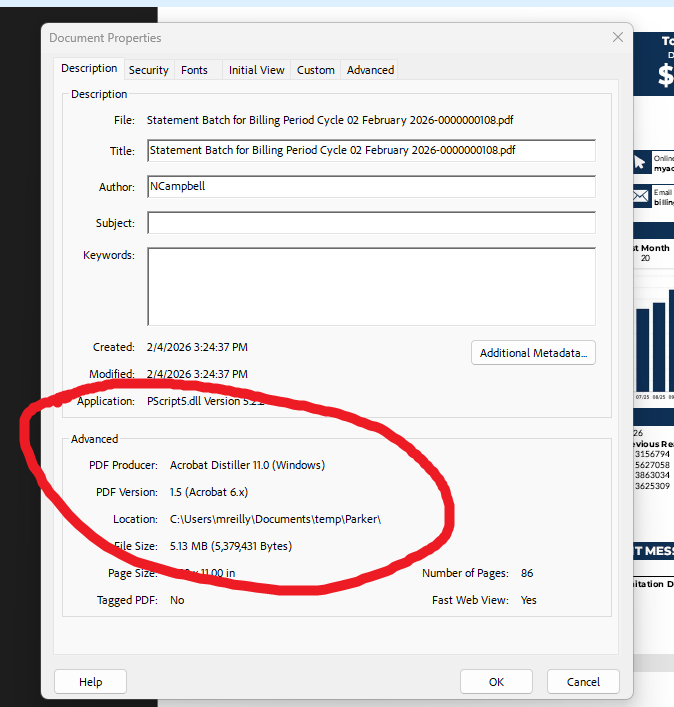
Obviously there is some difference between the PDF files provided by the customer, but the only difference I could see in the Document Properties is the PDF version and PDF Producer.
The good files are version 14 (Acrobat 5.x) and have NO PDF producer listed
Saving the PDFs as Reduced Size, and bumping the compatibility down to 5.x has not helped. Is there a limit to the PDF version Connect can ingest? Currently using ver 2024.2.3.23676
Any insight or assistance would be welcome. Either a solution for processing these files through Connect, or some explanation I can give to the client. Perhaps there is something they can do when creating these PDF files.
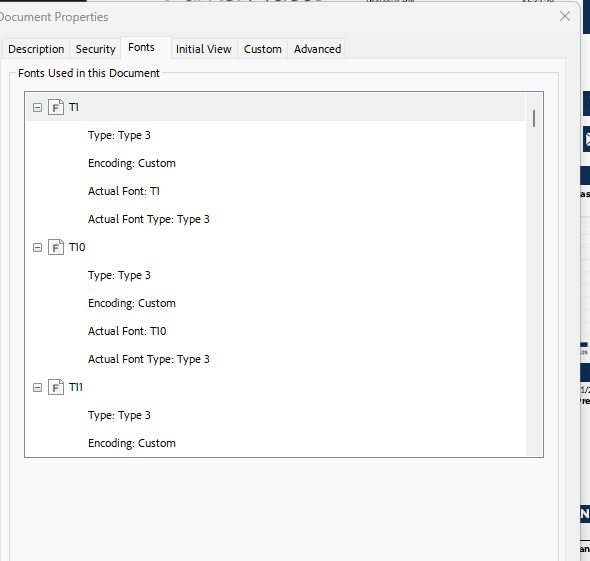
You might want to also check the font used in the bad PDF. In the past, files with Identity-H encoding were causing problems as the array containing the glyph to numeric value were missing. Adobe has its own way of reading the PDF wich Connect don’t.
The client was able to resend the two problem PDFs, and we were able to print the mailing. She said the only difference was that she did NOT open the PDFs and re-save before sending. In fact, the replacement PDFs were both PDF ver 17, so I don’t think the PDF version was an issue at all.
I have created nearly a dozen Connect jobs using this same procedure to extract address data from a PDF source in the last 6 months. I expect that number will continue to rise as more clients move to a PDF data source. I need to be able to go to the client with an explanation on why the PDF provided does not work with our software, when it seems perfectly fine to the client.
OK. I will do that. I was not sure if that was appropriate since the issue is with the PDF, not Connect itself. But I do need to know why this PDF is not compatible with Connect when others are.
You’ll need to send them a copy of the problematic PDF, they’ll open a ticket with R&D which can look into the PDF through Connect code and see why the issue occurs.
They cannnot teel you what was done to the PDF but most likely clarify the issue with it.
Since we know the problematic PDF were opened and saved back before processing them, they were modified from their original form.
With that known, maybe we will find what was the issue that cause it to be unreadable by the Connect engine.
The “custom encoding” is the issue, and that can only be fixed in the tool/software that produces the PDFs. It’s not something Connect can code around or resolve.
Every character you type on a keyboard is really a number. “A” is really “65” for example. In standard encoding, the code to draw the shape of an “A” is stored in a table with “65” as the index. The PDF encounters a 65, looks up the “65” entry in the font table, and executes the code resulting in the shape of an “A”.
With custom encoding, the “A” shape can be indexed anywhere. The PDF, internally, knows the number, but if it isn’t “65” then you’re out of luck.
A simple test is to copy/paste text from your PDF into Notepad. If you get garbage instead of clear text, Connect will have the same issue.
It’s like the differences between a new pack of cards where everything is ordered and sequenced nicely versus a shuffled deck where only the magician knows where the Ace of Spades is located.
After opening a support ticket and sending the problem PDF files to OL, it was determined that the fonts were not embedded, opening the door to all these problems and more. I have told the client that we need fonts embedded in the PDFs supplied, but I do not know how much control they have over PDF generation.
But at least I have an explanation.
Thanks for all the suggestions and support. An active community like this one is a great resource for me trying to unravel the complexities of Connect.
One thing that can be added regarding TGREER comments:
A simple test is to copy/paste text from your PDF into Notepad. If you get garbage instead of clear text, Connect will have the same issue.
Yes if you have the same garbage issue, Connect won’t do better BUT, Adobe also does some OCR ( Optical Character Recognition) which is some case, can extract data from Adobe but still won’t work in Connect. So relying on a problem you get when using Adobe can confirm it won’t work in Connect BUT it could work in Adobe and still not in Connect.
You can look at the Document Properties of the PDF in Acrobat to learn what software produced it. Then you can do some research on that software to find the “Embed all fonts using Standard Encoding” setting, and relay that to your client. I’ve had to do this countless times over the years. It’s generally a very simple setting, a simple checkbox or the like.